Multi-angle virtual staging: matching furniture in every photo
Stage 2 to 4 photos of the same room in one go. Every angle gets the same furniture, so your listing gallery looks consistent from every corner.
How to stage several angles, step by step
- 1
Open Multi-Angle Staging
Log in and choose Multi-Angle Staging from your tools. You'll see the heading "Same room, every angle".
- 2
Add 2 to 4 angles of the same room
Upload photos of one room taken from different corners, or select them from your library. You need at least 2 and can add up to 4.
A shared wall, window or floor in the photos helps match the furniture. To stage different rooms, use Virtual Staging instead.
- 3
Pick the room type and style
In the panel on the right, choose the room type, such as living room, bedroom or kitchen, and a style like Scandinavian, Japandi or Luxury. You can also pick colors.
- 4
Replace furniture if needed
If the room is already furnished, tick the box to replace the existing furniture.
- 5
Stage every angle
Click the Stage button, for example "Stage 3 angles". Staging takes about a minute per angle, and each angle shows its own progress.
- 6
Compare and switch sets
Each run creates a new set with the same furniture in every angle. Use Hold to compare to see the original, and switch between Originals, Set 1, Set 2 and so on. With Keep angles in sync on, all angles change together.
- 7
Download your photos
Use the download icon on each angle to save it.
Same furniture, every angle
Two angles of one living room, staged together. The sofa, armchairs, rug and artwork match in both.
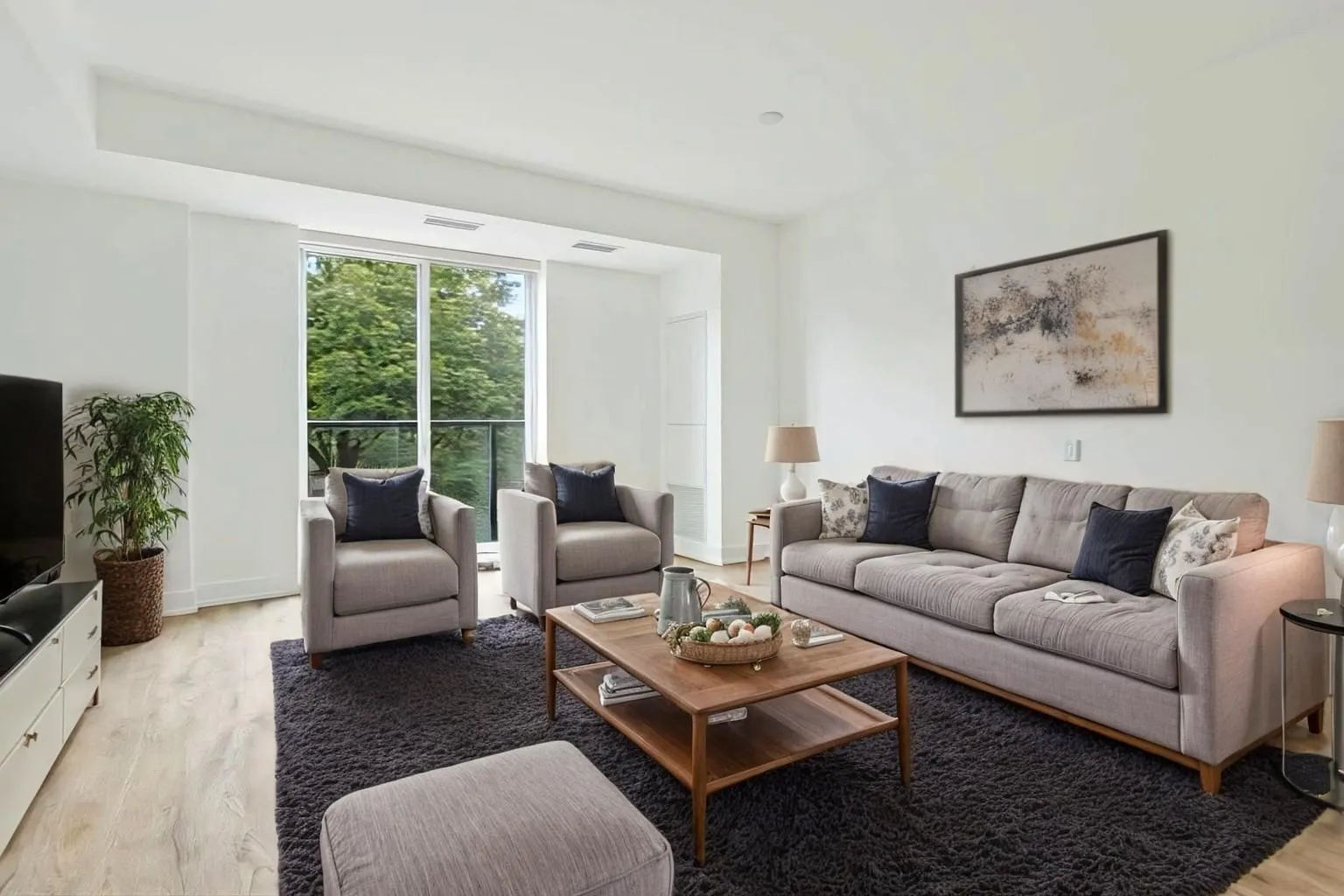 Angle 1
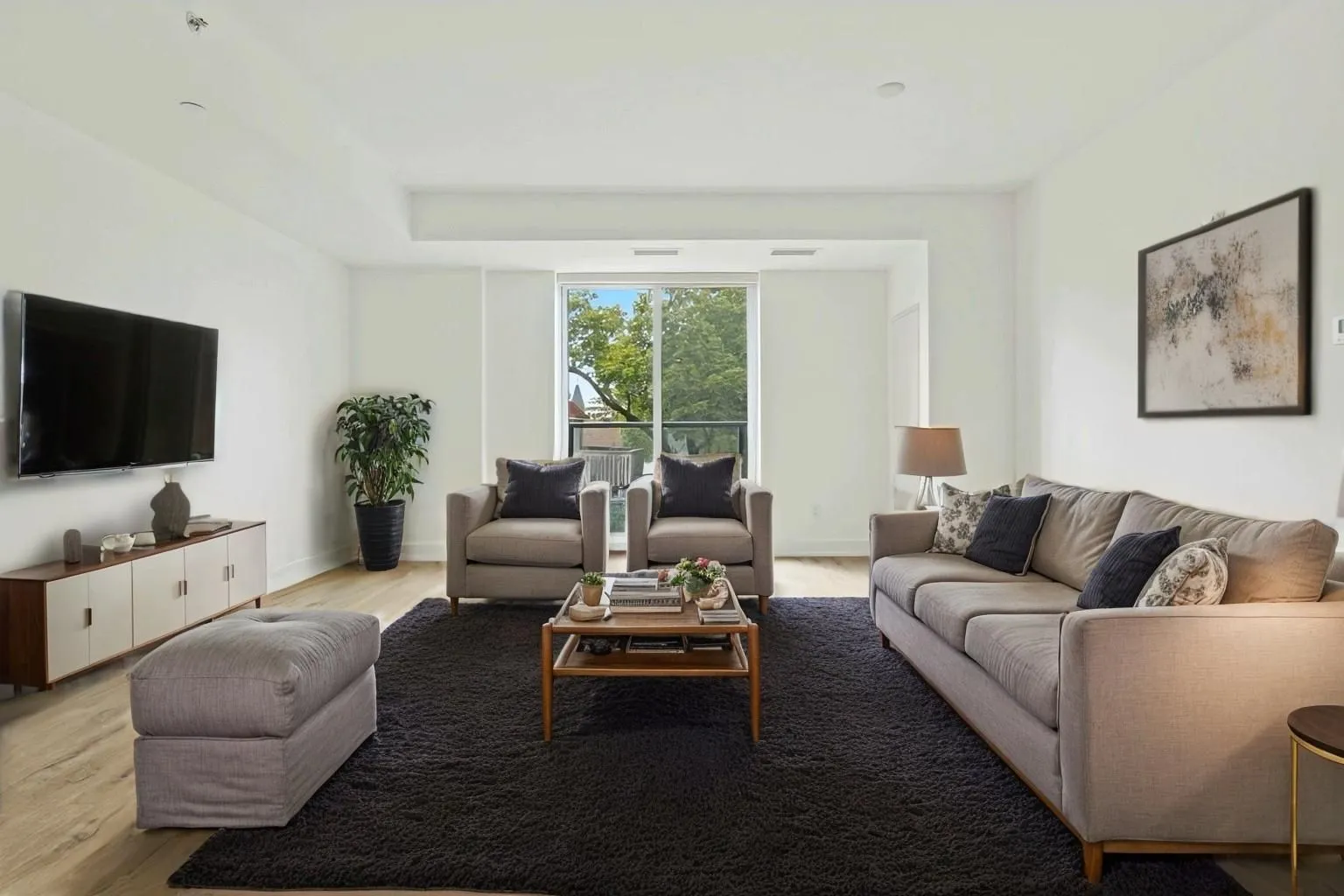 Angle 2
Pro tips
Shoot from different corners
Angles that show the room from clearly different positions make the most useful gallery.
Keep something in common
A wall, window or floor that appears in several photos helps the AI place the furniture consistently.
One room per set
Every photo in a set must show the same room. For a different room, start a new set.
Label staged photos
Many portals ask you to mark virtually staged photos. You can add a "Virtually Staged" disclaimer when you download.
Quick check
Three quick questions to check you've got it.
1.How many angles can you stage together?
2.Can a set include photos of two different rooms?
3.How are credits counted?
FAQ
Furniture is matched across angles as closely as possible, but small differences can appear between photos. This feature is in beta.
No. If it's furnished, tick the box to replace the existing furniture.
Yes. Stage the angles again and you'll get a new set. Earlier sets stay available, so you can compare them.
About a minute per angle.
Stage your first room from every angle.
Upload 2 to 4 photos of one room and see matching staging in minutes.
Open Multi-Angle Staging