AI lawn replacement: a green lawn in a few clicks
Turn dry, patchy or winter grass into a healthy green lawn. This guide shows how to find the lawn, choose the green and get a clean, full-resolution result.
How to replace a lawn, step by step
- 1
Open AI Lawn Replacement
Log in and choose Lawn Replacement from your tools.
- 2
Upload an exterior
Upload a daylight photo where the lawn is clearly visible: a front yard, a back yard or a garden.
- 3
Let the AI find the lawn
Under Detection Logic, Auto-detect Lawn is selected. The AI finds the grass for you.
If the result misses part of the lawn, or touches something it shouldn't, switch to Draw Lawn Area.
- 4
Or draw the lawn area
Choose Draw Lawn Area and paint over the lawn. Cover the whole lawn, but avoid paths, beds and the house: anything you paint can change.
- 5
Pick the green
In Lawn Texture Selection, choose Medium Green, Light Green or Dark Green. Medium Green suits most listings.
- 6
Add instructions if you need them
Use Add Extra instructions for anything that must stay exactly as it is, for example “keep the stone path”.
- 7
Replace and review
Click Replace Lawn, then compare the result with the original. Want another look? Each photo includes 9 free re-renders.
- 8
Download
Download the result. It comes back at your photo's full resolution, with fine details like house numbers still sharp.
What a result looks like
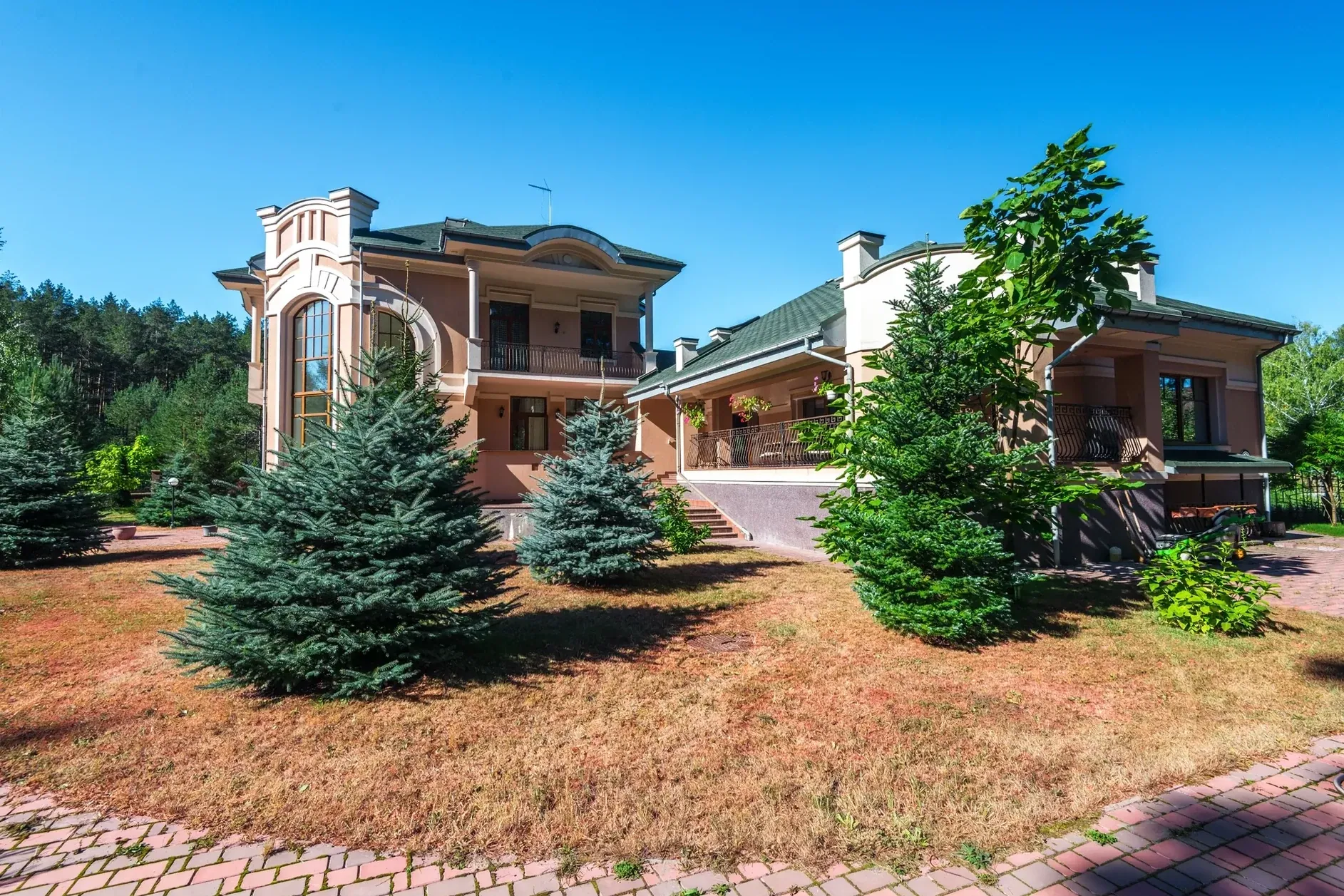
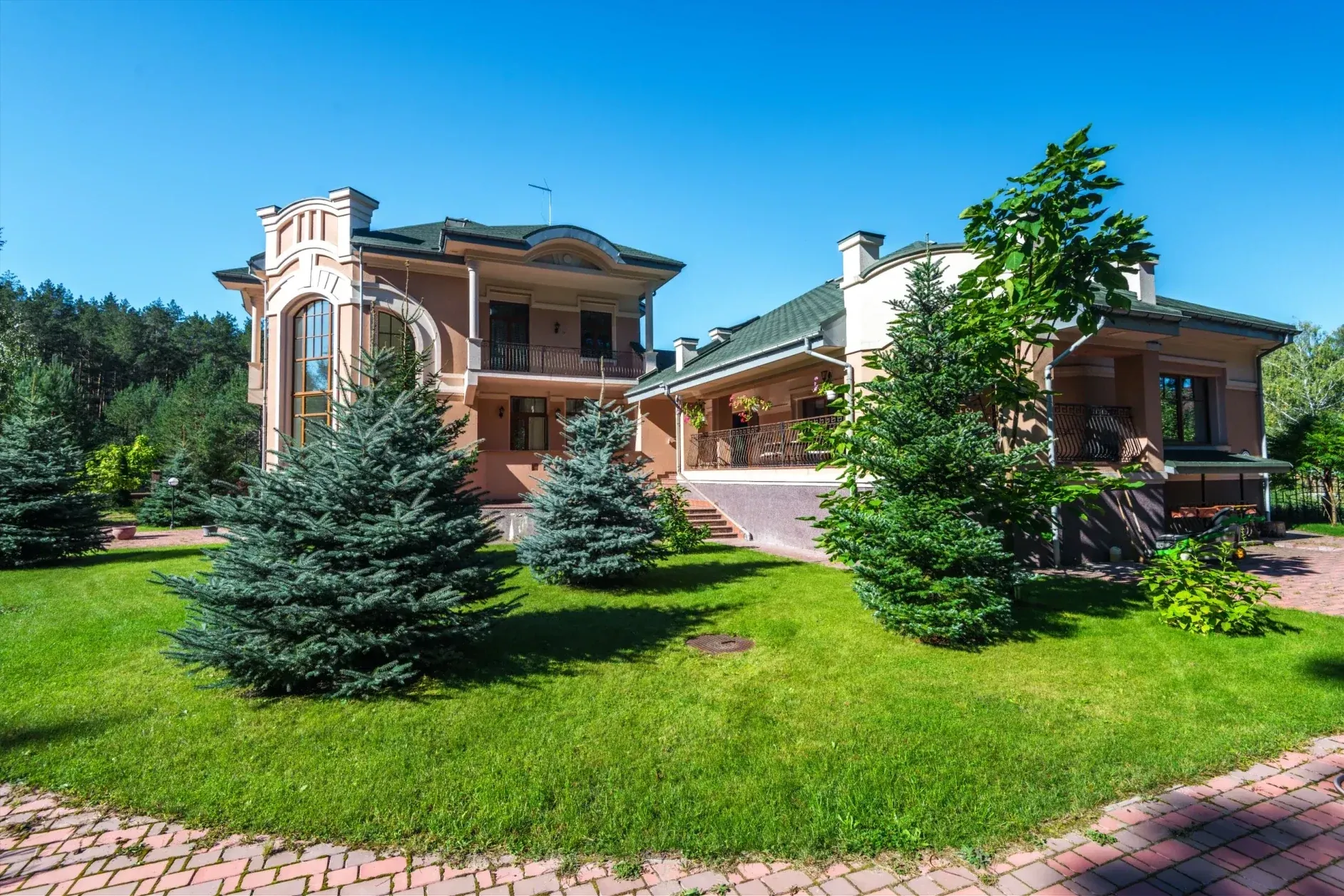
Drag the slider to compare the dry lawn with the replaced one.
Pro tips
Start from a daylight exterior
Clear daylight photos give the cleanest lawns. Twilight and night shots are harder to match.
Show the lawn clearly
The more of the grass is visible, the better the AI can read its shape and the light on it.
Draw only the grass
When you draw the area, stay inside the lawn. Painting over paths or plants lets them change too.
Keep it honest
Show the garden as it looks in season, not something it isn't. Label edited photos where your MLS or portal asks for it.
Quick check
Three quick questions to check you've got it.
1.What should you do if auto-detection misses part of the lawn?
2.When you draw the lawn area, what should you avoid?
3.Which green suits most listings?
FAQ
No. The result comes back at your photo's full resolution, the same pixel size you uploaded.
Yes. Fine detail from your original photo is carried into the result, so numbers, brick and window bars stay crisp.
Each photo uses 1 credit and includes 9 free re-renders, so you can try every green.
Yes. In the HDR editor you can apply lawn replacement to several photos of a shoot in one go.
Use lawn replacement to show a garden as it looks in season. Don't add a lawn the property doesn't have, and label edited photos where your portal asks for it.
Try it on your next exterior.
Upload a photo with a tired lawn and see the result at full resolution.
Open Lawn Replacement