On this page
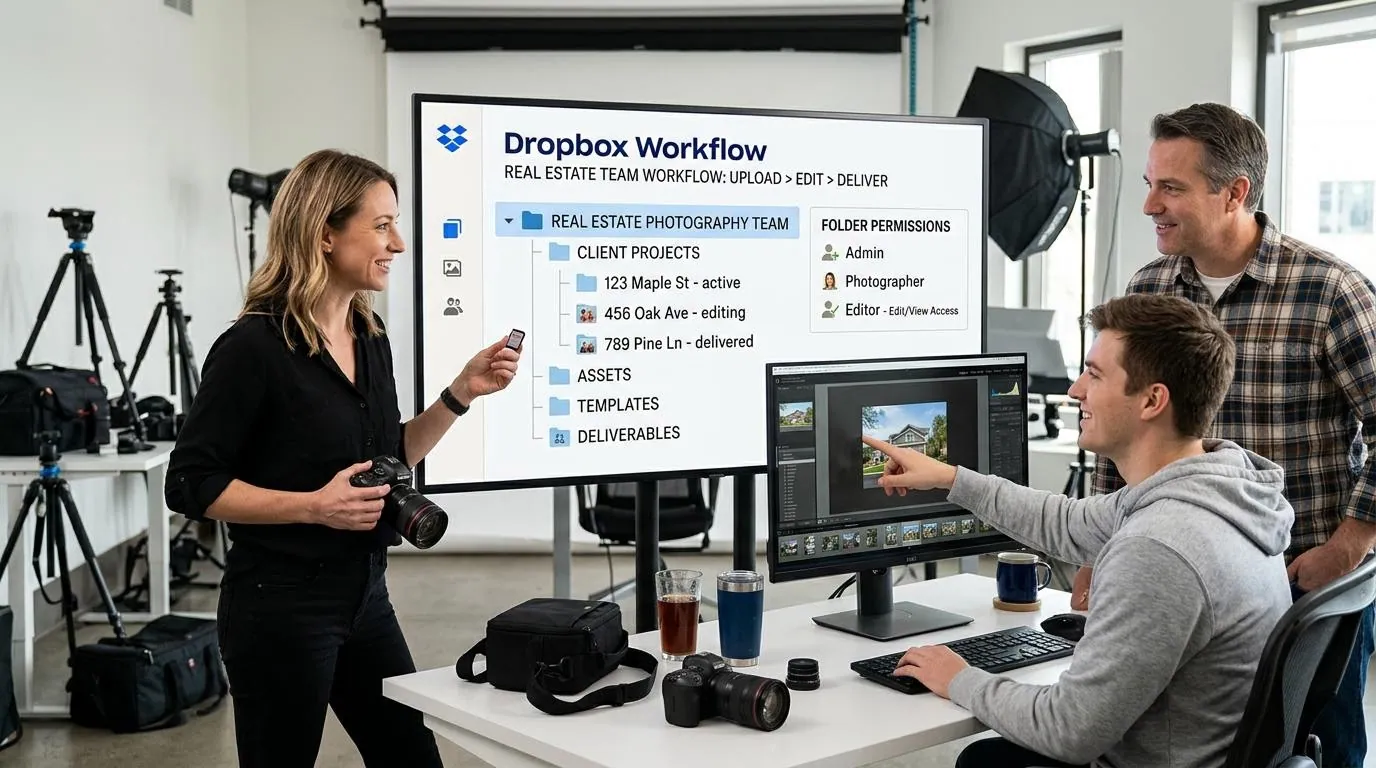
For a solo photographer, Dropbox is storage. For a real estate media company with five or fifteen photographers, it is the production line. Every shoot passes through it, and every unclear rule shows up as a problem: folders called New folder (3), a shoot edited twice, a gallery waiting because nobody noticed the upload had finished.
This guide is about the team version of that workflow: how to structure a shared folder, who gets access to what, and how to connect it to Stager AI Dropbox auto-import so every shoot is edited the same way, with controls for volume and credits. If you work alone, start with how to automate real estate photo delivery instead.
Why a shared Dropbox folder works for media teams
Most teams already use Dropbox to move files from the field to the office. The problem is not the tool, it's that every photographer uses it a little differently. A shared team folder with clear rules fixes that, and it gives you three things at once:
- One inbox for operations. Whoever schedules and delivers shoots can see what arrived, from whom and when, without asking.
- No file moving. Photographers upload once. Nobody downloads, renames and re-uploads shoots for the editor.
- A trigger for editing. Once the folder is connected to Stager AI, an upload is all it takes to start the edit.
Dropbox team spaces and Business team folders are supported, so the folder can belong to the company account rather than to one photographer's personal Dropbox.
Two folder structures that work
When you connect Dropbox, you choose one folder to watch and how Stager AI should find the shoots inside it. There are two modes. Pick the one that matches how your team already works, not the other way around.
Option 1: a flat inbox, one subfolder per shoot
The simplest setup. The watched folder is an inbox, and every folder directly inside it is one shoot. Files can sit deeper, for example in a subfolder per room or per camera card, and they still belong to the shoot they're under.
- Shoots inbox / 2026-11-14 12 Harbour View /
- Shoots inbox / 2026-11-14 8 Mill Lane / Card 2 /
- Shoots inbox / 2026-11-15 4 Orchard Road /
The trade-off: every photo uploaded anywhere in that folder is processed and uses credits. That's ideal for a dedicated inbox, and risky if people also use it to store other files. Files placed directly in the watched folder, outside any subfolder, are ignored.
Option 2: your own folder tree, tag the folders to edit
Many media companies already organize Dropbox by client, year and month, and don't want to change it. In tagged mode you keep that structure and add a tag, such as #stager, to the name of each shoot folder you want edited. Only tagged folders are processed, together with their subfolders, at any depth.
- Clients / Coastal Realty / 2026 / November / 12 Harbour View #stager / is edited
- Clients / Coastal Realty / 2026 / November / Contracts / is ignored
The shoot is named after the tagged folder plus up to three folders above it, with the tag removed, so the example above becomes Coastal Realty - 2026 - November - 12 Harbour View in Stager AI. Tagging a folder that is already uploaded starts editing after about 2 minutes, which makes the tag a simple "go" signal for whoever checks the shoot first. The tag needs 3 to 64 characters, including a symbol like # or _, so it can't match an ordinary folder name by accident.
| Flat inbox | Tagged folders | |
|---|---|---|
| What is a shoot | Each folder directly inside the watched folder | Each folder whose name contains the tag, at any depth |
| What gets processed | Every new upload in the watched folder | Only uploads inside tagged folders |
| Shoot name in Stager AI | The subfolder name | The tagged folder plus up to three parent folders, tag removed |
| Best for | A dedicated upload inbox | Teams with an existing client and date structure |
Every folder directly inside the watched folder is one shoot. Deeper folders belong to the shoot above them. Loose files directly in the watched folder, and folders on your skip list like Edited, are ignored.
- Shoots inboxWatched folder
- 2026-11-14 12 Harbour ViewShoot2026-11-14 12 Harbour View
- EditedIgnored
- 2026-11-14 8 Mill LaneShoot2026-11-14 8 Mill Lane
- Card 2Part of the shoot
- 2026-11-15 4 Orchard RoadShoot2026-11-15 4 Orchard Road
- loose-photo.jpgIgnored
A naming rule everyone follows
The folder name becomes the project name, which is what your team searches for when an agent calls. Agree on one rule and put it in your photographer onboarding:
- Date first, as YYYY-MM-DD, so folders sort in shoot order.
- The property address, not the client's name. An agent has many listings, but each address is one shoot.
- One shoot per folder. A return visit for twilight photos gets its own folder, for example 12 Harbour View - twilight.
- In tagged mode, add the tag last, when the upload is complete and checked.
Who gets access to what
Permissions are where team workflows usually break, often months later, when someone leaves. A few rules avoid most of it:
- Connect Stager AI from a company account, not from a photographer's personal Dropbox, so the connection doesn't disappear with one person.
- Give photographers access to the upload folder only. They don't need to see invoices or other clients' folders to deliver a shoot.
- Keep one person responsible for the connection: usually the operations lead who also reviews and delivers.
On the Stager AI side, access is read-only. It reads the folder you pick, and never writes, moves or deletes your files. Only files uploaded after you choose the folder are processed, so connecting a folder full of old shoots doesn't edit them by surprise.
Keep delivered photos and duplicates out of the queue
Many teams put the finished photos back into the shoot folder, in a subfolder like Edited or Final, so everything about a listing lives in one place. Without a rule, those finished JPGs would be picked up and edited again.
Add those names to Skip folders named in your Dropbox settings, comma-separated. Files inside a shoot's folders with exactly those names are never processed. Two other cases are handled for you: duplicate files are skipped, and when a camera saves RAW and JPG for every exposure, the JPGs that have a RAW with the same name in the same folder are skipped, so you don't pay for the same frame twice.
Save the edit once for the whole team
The HDR settings on your Dropbox connection apply to every shoot it picks up, whoever uploaded it. That's what makes the output consistent across photographers:
- Editing style, including a custom house style if you have one
- Perspective correction
- Photographer and camera removal
- Fire in fireplace and TV blackout
- Auto privacy and license plate blur
Bracket grouping is automatic: Stager AI reads each photo's capture time and exposure data to work out which shots belong to the same scene, so photographers don't need to sort brackets into folders. We cover the style side in depth in how to keep one editing style across every photographer.
Stay in control of volume and credits
An automatic workflow is only safe if you can stop it. Dropbox auto-import has four controls built for teams:
| Control | What it does | When to use it |
|---|---|---|
| Daily file limit | Shoots that would go over this many files in 24 hours wait for your approval. Each bracketed exposure counts as one file. | To catch a wrong folder or an unusually large upload before it uses credits |
| Pause automation | New shoots keep collecting but wait until you resume. Dropbox stays connected. | Holidays, a billing change or a switch of editing style |
| Cancel a shoot | Nothing is processed and no credits are used. Files still arriving in that folder over the next 10 minutes are ignored too. | A test upload or a shoot that was put in the wrong place |
| Retry | Sends a failed shoot again from your account page. | After fixing the cause, for example adding photo credits |
Each final photo uses 1 photo credit, and a bracket set of 3, 5 or 7 exposures counts as one photo. If the account runs out of credits, the shoot stops with an out-of-photos message on your account page, and you can retry it once you've added more.
What happens to a shoot, step by step
- 1Upload. A photographer culls in the car and uploads the keepers into a new shoot folder. The shoot shows as Uploading under Recent shoots.
- 2Wait for the last file. 10 minutes after the last file lands, the shoot is complete. The gap is there because uploads from the field arrive in bursts.
- 3Edit. Brackets are grouped into scenes and edited with the connection's settings. The shoot shows as Processing.
- 4Review. Edited photos land in a Stager AI project named after the folder. Run AI QA to score every photo and check the low scores first.
- 5Deliver. Download or deliver the gallery from the project. Files that arrive late become a new batch in the same project.
Connecting Dropbox is free, and each edited photo uses 1 photo credit, like any Auto HDR edit. If you also need to send shoots from your own booking or delivery software, see Dropbox automation or an editing API, and the overview for real estate media companies.
Frequently asked questions
Yes. Dropbox team spaces and Business team folders are supported, so every photographer can upload into the same watched folder, and every shoot is edited with the same saved settings.
In subfolder mode, every folder directly inside the watched folder is a shoot and every new upload is processed. In tagged mode, you keep your own folder structure and only folders whose name contains your tag, such as #stager, are processed.
Add the names of your delivery folders, such as Edited or Final, to Skip folders named in your Dropbox settings. Files inside folders with exactly those names are never processed.
Yes. Set a daily file limit, and shoots that would go over it in 24 hours wait for your approval. You can also pause automation or cancel a single shoot before it's processed.
No. Access is read-only. Stager AI reads the folder you pick and never writes, moves or deletes your files. Edited photos appear in your Stager AI project.