AI virtual staging: an empty room, furnished in seconds
Furnish an empty room with realistic furniture and decor. This guide shows how to pick the room type and style, replace existing furniture, steer the result with instructions and stage a whole shoot at once.
How to virtually stage a room, step by step
- 1
Open Virtual Staging
Log in and choose Virtual Staging from your tools.
- 2
Upload a room
Upload an interior photo. Empty rooms work best, and furnished rooms work too.
- 3
Pick the room type
Under Room Type, choose what the room should be: a living room, a bedroom, a home office and so on. There are 19 room types.
- 4
Pick a style
Under Style, choose one of 11 interior styles, such as Scandinavian, Luxury or Industrial.
Not sure which style suits the home? Stage the same room in two or three styles and keep the one that fits its market.
- 5
Room already furnished?
Tick “Check this box to replace existing furniture.” and Stager AI replaces what's there with new pieces in your chosen style.
- 6
Add custom instructions if you want
Use Custom Instructions for notes in plain words, such as “add a reading corner by the window” or “keep it light and airy”.
- 7
Stage and review
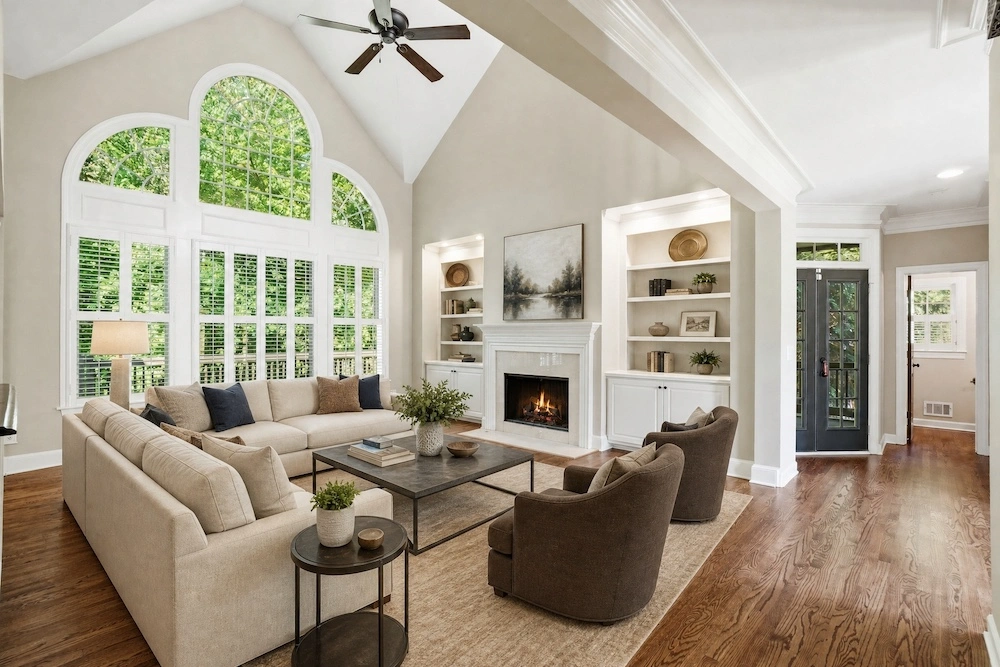
Click Virtually Stage Now, then compare the result with the empty room. If a wall, floor or window changed, re-render: each photo includes 9 free re-renders.
- 8
Download
Download the staged photo. On paid plans it's upscaled 4x with AI, or 8x for print; free downloads are low resolution and watermarked.
- 9
Staging a whole shoot?
In the HDR editor, select the photos you want and stage them together from the Virtual Staging panel.
What a result looks like
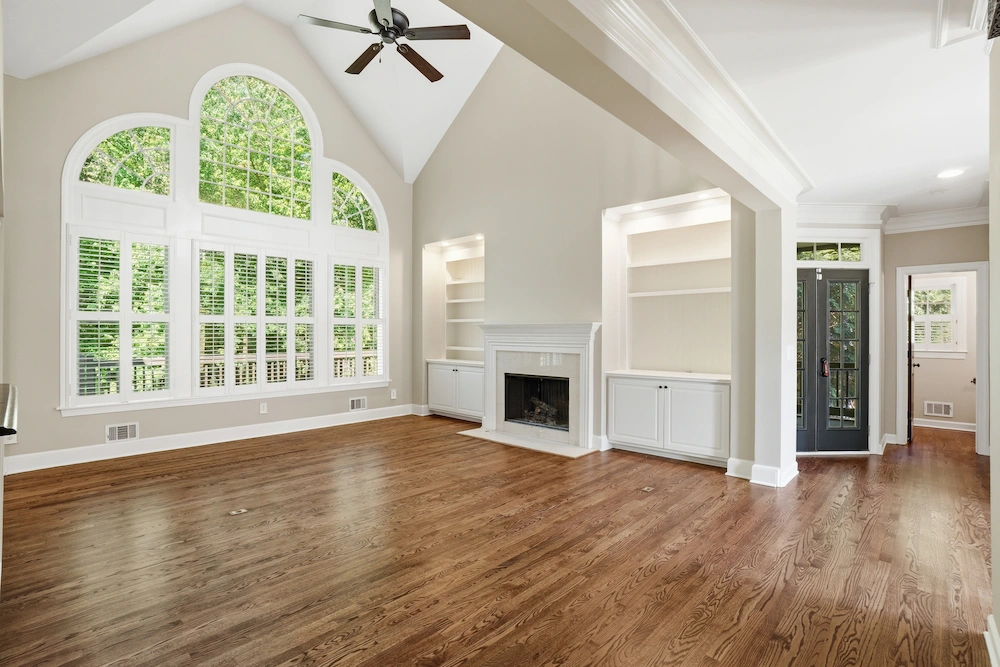
Drag the slider to compare the empty living room with the staged one.
Pro tips
Start from an empty room
Empty rooms give the cleanest results. For furnished rooms, tick the box to replace the furniture.
Kitchens and bathrooms get decor
In kitchens and bathrooms Stager AI adds decor rather than furniture, and the cabinets keep their color.
Several photos of one room?
Use multi-angle staging to stage 2 to 4 photos of the same room with the same furniture.
Label staged photos
Label staged photos as virtually staged, keep the empty photo in the listing where you can, and never use staging to hide damage.
Quick check
Three quick questions to check you've got it.
1.The room you uploaded already has furniture. What do you do?
2.A window changed shape in the result. What's the fix?
3.How should staged photos appear in a listing?
FAQ
Usually a few seconds per photo. At busy times it can take a few minutes.
Stager AI is instructed to keep them as they are and only add furniture and decor. AI can still change a detail now and then, so check each result and re-render if needed.
Yes. Subtle staging keeps the furniture that's there and adds only decor, like plants, cushions, art and rugs.
Each photo uses 1 credit and includes 9 free re-renders. Plans start at 10 photos a month and unused photos roll over.
Yes. You can stage rooms in the web editor, in the Stager AI app for iOS and Android, and through the Stager AI API.
Try it on your next empty room.
Upload a room, pick a style and see it furnished in seconds.
Open Virtual Staging